My phone's battery bar had been that same dead gray rectangle for three years. I never thought about it until my coworker unlocked her phone and a little cat face was sitting in the status bar, whiskers twitching as the battery hit 40 percent. I asked her what app that was. She said Emoji Battery Widget. I installed it during lunch. Twenty minutes later my status bar had a coffee cup that refills when I charge. Stupid, right? But I grin every time I plug in now. That dumb little coffee cup made checking my battery fun.
What Is Emoji Battery Widget
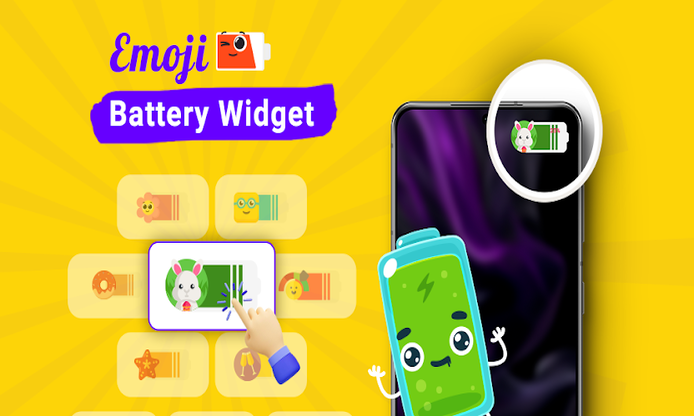
Emoji Battery Widget is a free Android personalization app that swaps your stock battery indicator for emoji-based icons. Instead of a number or a bar, you get an emoji that changes as your battery level shifts. You pick which emojis show up at which charge levels, tweak the size and color, and drop it on your home screen or status bar. It is made for people who like customizing their phone down to the smallest detail, and who would rather see a heart or a cat than a boring percentage.
How It Works
The app reads your battery level through Android's system APIs and maps that number to an emoji you choose. Here is the basic flow:
- Install the app and grant the battery and status bar permissions it asks for.
- Pick an emoji theme or assign individual emojis to battery percentage ranges (for example, a full battery for 80-100, a worried face for 20-40, a skull for under 10).
- Choose where it shows up: status bar, home screen widget, or both.
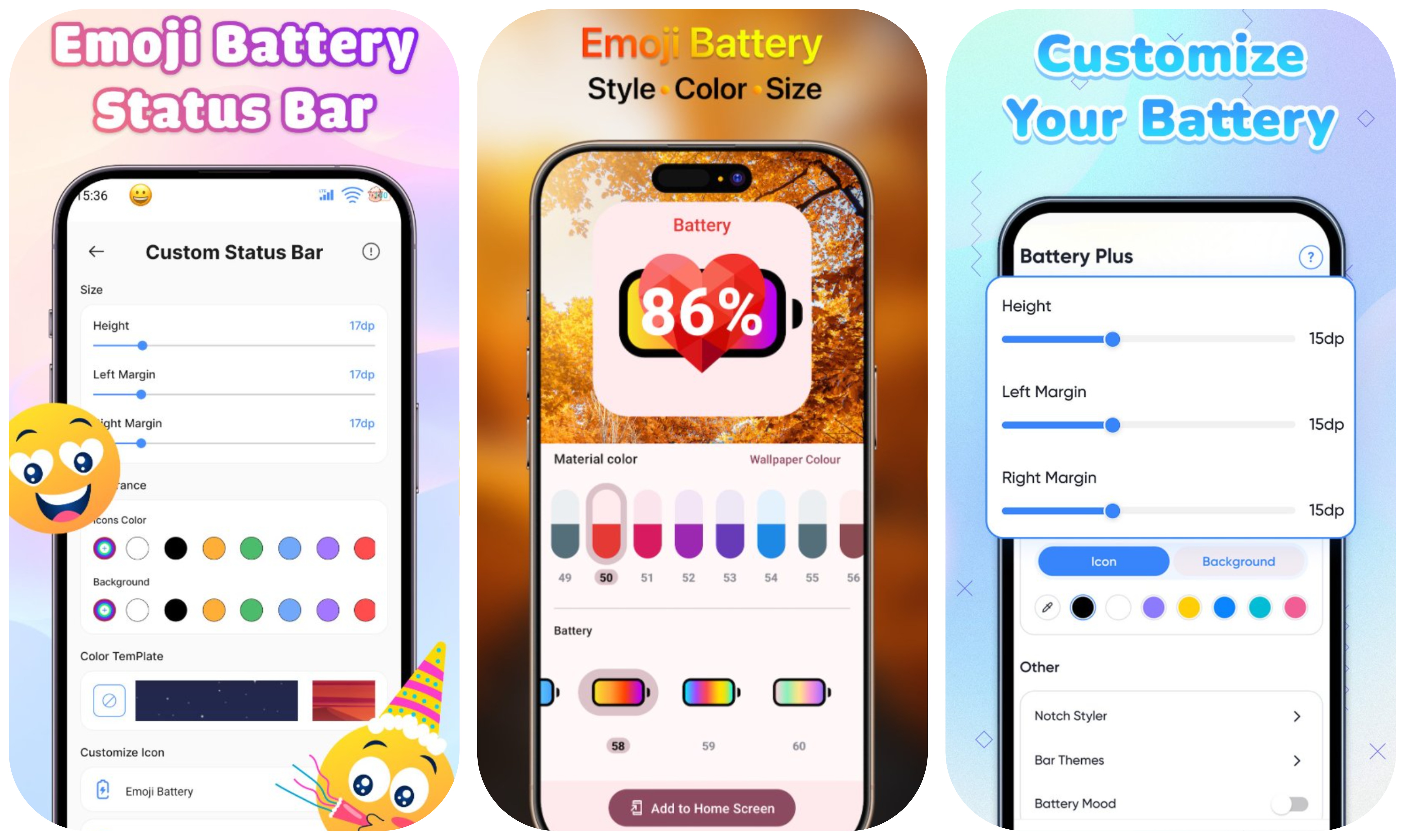
- Adjust size, color, background transparency, and border style to match your theme.
- The widget refreshes automatically as your battery changes, no manual updating needed.
The setup flow: pick emojis, assign ranges, customize appearance, and place on home screen.
Key Features
Custom Emoji Mapping
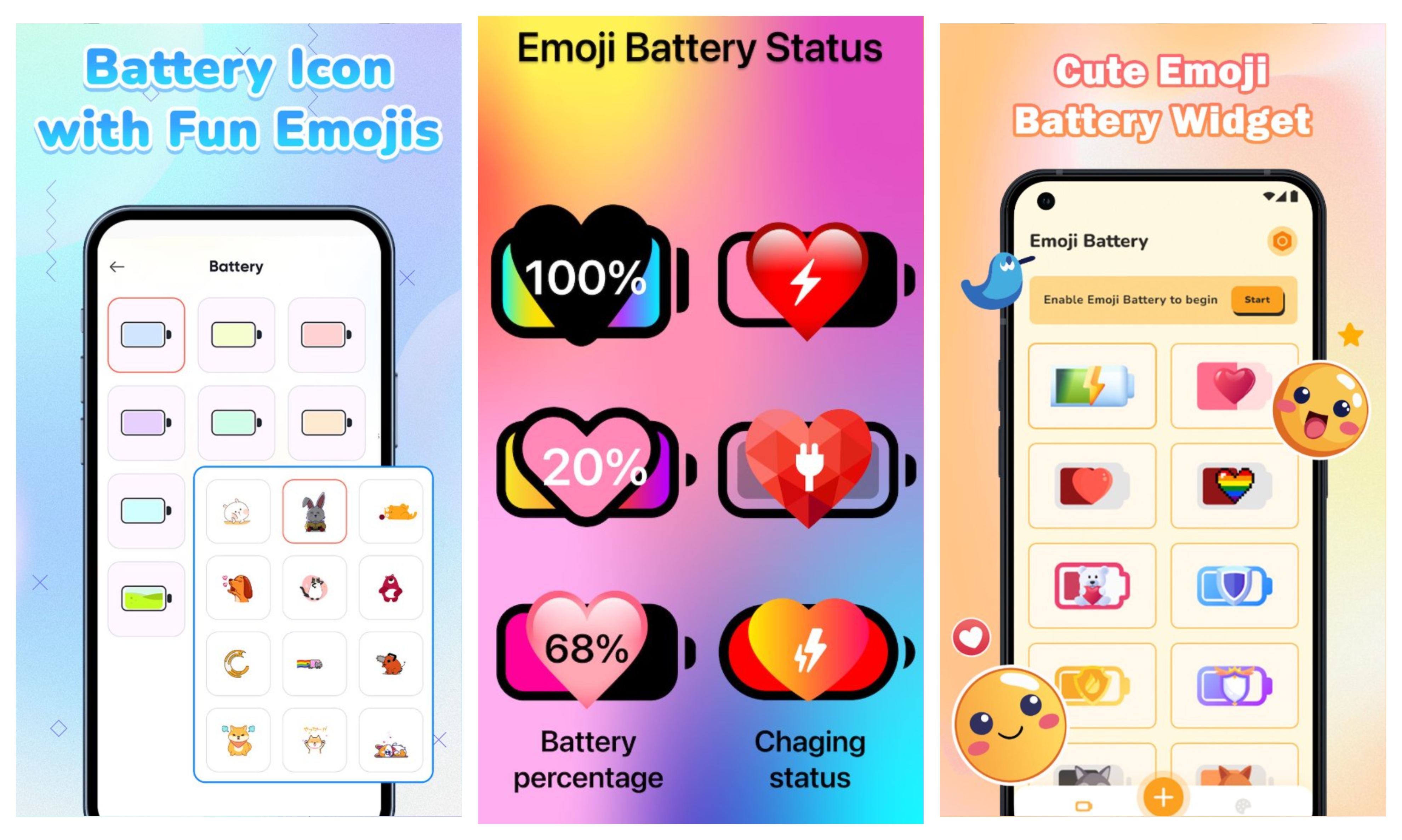
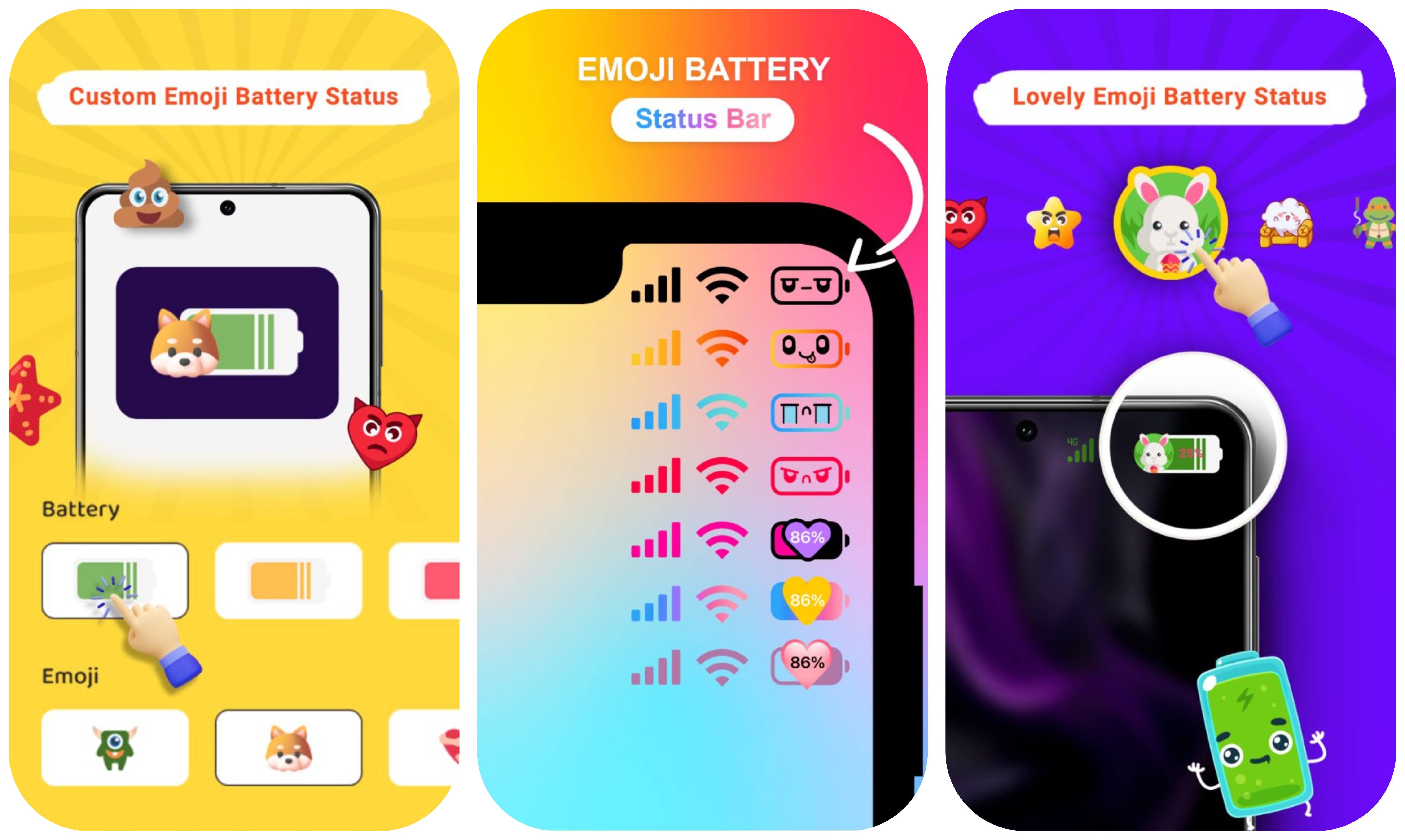
This is the heart of the app. You can assign any emoji to a specific battery percentage range. I set mine so that 80-100 percent shows a smug cat, 40-79 percent shows a neutral face, 20-39 percent shows a sweating emoji, and anything under 20 shows a screaming face. You can go as simple or as elaborate as you want. Some people use a progression from a full pizza down to a crust. The app gives you the range slider and you just pick what feels right.
Status Bar Customization
Beyond the battery emoji itself, you can customize the whole status bar. Swap out the default Wi-Fi icon, change the clock style, hide the carrier name, adjust the notch shape. I turned off the alarm icon because it always stressed me out even when I did not have an alarm set. Small thing, but it made my status bar cleaner and less cluttered.
Home Screen Widgets
The app offers several widget sizes for your home screen. A small 1x1 widget just shows the emoji and percentage. A larger 2x2 widget can show the emoji, percentage, charging status, and a custom label. I use the medium one on my second home screen page so I can see my battery at a glance without pulling down the notification shade.
Gesture Actions
You can assign custom actions to taps and swipes on the widget. Single tap opens the app. Double tap can launch your camera. Swipe up can open settings. I set a double tap to toggle my flashlight, which is way more useful than I expected. The gestures are optional, but they turn the widget from a decoration into an actual shortcut hub.
Notch and Display Adaptation
If your phone has a notch or a hole-punch camera, the app lets you adjust how the emoji battery sits around it. You can hide the notch, shrink the emoji, or shift it to one side. I have a centered hole-punch and the app automatically offset the emoji so it does not overlap. It also handles rounded corners and edge displays without cutting off the widget.
Charging Animation
When you plug in your charger, the emoji does a little animation. My coffee cup fills up. Other people have a battery that does a happy bounce or a heart that pulses. It is a tiny touch, but it makes plugging in your phone feel less like a chore and more like feeding a tiny pet. The animation only plays for a few seconds so it does not get annoying.
App Screenshots
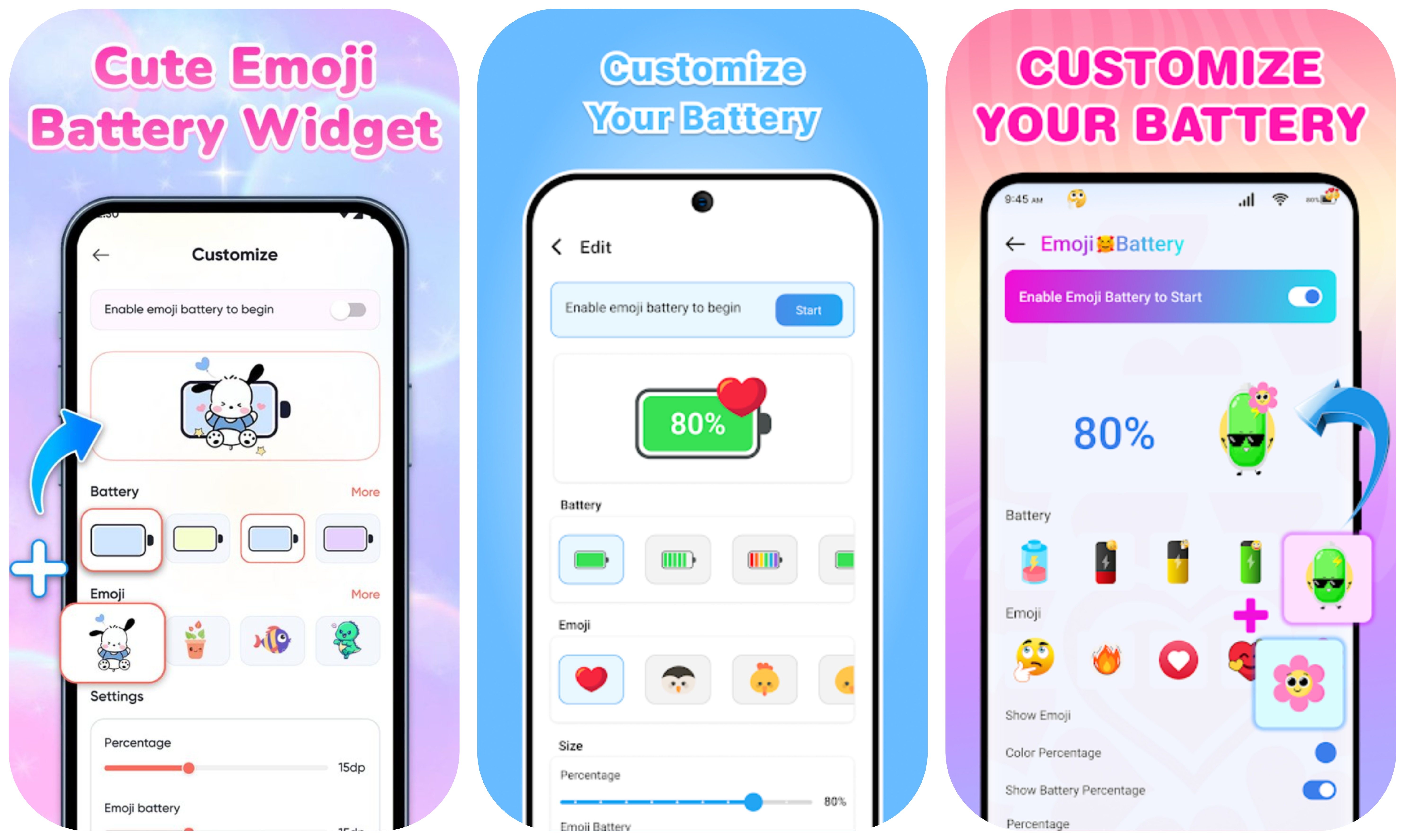
The emoji selection screen with categories for animals, faces, food, and objects.
Step-by-Step Tutorial
Here is the full setup from a fresh install to a fully customized emoji battery. I will walk you through exactly what I did:
- Install and open the app. The first screen asks for two permissions: battery stats access and the ability to draw over other apps (for the status bar overlay). Grant both. Without these the app literally cannot do its job.
- Pick an emoji theme. The app offers preset themes like "Cute Animals," "Food Journey," "Face Expressions," and "Hearts." You can start with a theme and tweak it later, or go custom from the start. I picked "Food Journey" and then changed half the emojis anyway.
- Assign emojis to battery ranges. Tap on each range (0-20, 21-40, 41-60, 61-80, 81-100) and pick an emoji. You can also add custom ranges if five is not enough. I added a special one for under 5 percent that shows a ghost.
- Choose display location. Toggle on "Status Bar" to replace the system battery icon, or "Home Screen Widget" to add it as a widget. You can do both. I have both on, because why not.
- Add the home screen widget. Long-press an empty spot on your home screen, select "Widgets," find Emoji Battery Widget, and drag it to where you want. Resize it by dragging the corner handles.
- Customize the appearance. In the app, go to "Appearance" to change the emoji size, background color, border style, and transparency. I set mine to no background with a thin white border so it blends with my dark theme.
- Set up gesture actions. Under "Gestures," assign actions to taps and swipes. I did single tap to open the app, double tap for flashlight, swipe up for settings.
- Adjust notch settings. If you have a notch, go to "Notch" and pick how the emoji sits around it. Options include hide, shrink, and offset. Auto-detect usually gets it right.
- Test the charging animation. Plug in your phone and watch the emoji react. If you do not like the animation, you can turn it off in settings. I kept mine on because it makes me smile.
- Lock it in. Once you are happy, just close the app. The widget and status bar emoji will keep working in the background. You only need to open the app again if you want to change something.
Use Cases
- Theming your home screen. If you spend time arranging widgets, icons, and wallpapers, the stock battery bar sticks out like a sore thumb. An emoji battery blends with whatever aesthetic you are going for.
- Kids and teens. My niece thinks the screaming face at low battery is the funniest thing ever. She actually pays attention to her battery now instead of letting it die at 2 percent every day.
- Accessibility. If you have trouble reading small percentage numbers, an emoji that visually shifts from happy to sad is easier to parse at a glance. No squinting required.
- Gift for a non-techy friend. I set up my mom's phone with a cat theme and she actually checks her battery now. She used to call me every week asking why her phone died. The cat face fixed that.
- Matching your mood. Some people swap their emoji theme based on season or mood. Halloween emojis in October, hearts in February, a turkey in November. It is a low-effort way to keep your phone feeling fresh.
- Quick battery check without unlocking. With a home screen widget, you can see your battery level and charging status on the always-on display or lock screen without touching your phone.
Tips & Tricks
- Use contrasting emojis. Pick emojis that look very different from each other so you can tell your battery level at a glance without reading the number. A cat and a skull are easy to tell apart. Two similar face emojis are not.
- Keep the percentage visible. Even with the emoji, turn on the percentage overlay. It helps when you need the exact number, like before a long trip. The emoji is for vibes, the number is for precision.
- Test your theme for a day before committing. Some emojis look great in the picker but terrible on your status bar at a tiny size. Give it 24 hours and see if it still makes you smile.
- Turn off animations if they bug you. The charging animation is cute for the first week, but if it starts to feel gimmicky, just switch it off. The app still works perfectly without it.
- Use the gesture actions. They are easy to overlook but genuinely useful. Double tap for flashlight is my most-used shortcut. Swipe up for settings saves me digging through menus.
- Check the free version first. The free tier has a solid emoji selection. Do not pay for premium until you know you want the expanded library. Most people are happy with the free options.
- Restart your phone if the widget stops updating. Sometimes Android's battery optimization kills the widget process. A quick reboot fixes it. You can also add the app to your battery optimization whitelist.
- Match your emoji to your wallpaper. If your wallpaper is dark, pick bright emojis. If it is colorful, pick simple ones. The widget looks best when it complements, not competes with, your background.
- Share your theme with friends. Some versions of the app let you export your emoji mapping as a code. My coworker sent me her cat theme and I imported it in two taps. Made the whole office switch.
Pros & Cons
Pros
- Massive emoji library covering animals, food, faces, objects, and symbols.
- Granular control over percentage ranges, not just three buckets.
- Status bar, home screen widget, and lock screen all supported.
- Gesture shortcuts turn the widget into a functional tool, not just decoration.
- Very low battery drain because it uses system APIs instead of background polling.
- Works with notches, hole-punch cameras, and rounded edge displays.
Cons
- The best emoji themes and some advanced customization options are locked behind a premium upgrade.
- Widget refresh can lag by a few minutes on older devices with aggressive battery management.
- Requires overlay and accessibility permissions, which some users may be uncomfortable granting.
- The status bar emoji is small, so intricate emoji designs can be hard to make out at a glance.
- Occasional sync delay after unplugging the charger, though it corrects itself within a minute.
Alternatives / Comparison
| App | Core difference | Best for |
|---|---|---|
| Battery Widget Reborn | Circular and numeric widgets with graph history, no emoji support | Users who want detailed battery stats and graphs |
| KWGT Kustom Widget Maker | Full custom widget builder, can include emoji but requires manual setup | Power users who want total control over every widget element |
| Emoji Battery Widget | Emoji-first battery display with status bar, widget, and gesture support | People who want a fun, emoji-based battery indicator out of the box |
FAQs
Does Emoji Battery Widget drain my phone battery?
No. The app uses Android's native battery APIs and only refreshes when the system allows it, so the power consumption is negligible. It does not run a background polling loop.
Can I use different emojis for different battery levels?
Yes. You can assign specific emojis to percentage ranges like 0-20, 21-40, 41-60, and so on. You can also add custom ranges if the default five are not enough.
Why does my widget not update instantly when I charge my phone?
Android limits how often widgets can refresh to save power. The widget typically updates within a few minutes or when you unlock your screen. Tapping the widget forces an immediate refresh.
Do I need to pay to use Emoji Battery Widget?
The core features, including emoji selection, home screen widgets, and basic status bar customization, are free. Premium unlocks additional emoji packs, advanced themes, and some gesture options.
Will the emoji battery show on my lock screen?
The home screen widget can appear on your lock screen if your launcher supports lock screen widgets. The status bar emoji shows on the lock screen by default since it overlays the system status bar.
Is my personal data safe with this app?
The app does not collect or share personal data. It requires battery stats and overlay permissions to function, but these are used locally on your device. Always check the privacy policy before installing.
Can I use Emoji Battery Widget on iOS?
Some versions of the app are available on iOS as home screen widgets, but the status bar customization is Android-only because iOS does not allow third-party status bar overlays.
Conclusion
Emoji Battery Widget is not going to make your phone faster or your battery last longer. What it does is make checking your battery something you actually enjoy doing. The emoji mapping is flexible enough to match any personality, the customization goes deep enough for theming enthusiasts, and the gesture shortcuts add real utility on top of the fun. If you are the kind of person who changes their wallpaper monthly and rearranges their home screen for fun, this app is a no-brainer. Install it, spend ten minutes picking your emojis, and every time you check your battery you will get a little spark of joy instead of a gray rectangle. That coffee cup still gets me every time.
Safety Note and Disclaimer
Our website is a third-party distribution and information site, not the official app store or the app developer.
Download only from a source you trust and verify the source.
Review the permissions the app requests and decline anything that looks excessive.
Keep your device's security settings and antivirus up to date.
Prefer official stores (Google Play) when the app is available there.
This article is an independent overview and is not affiliated with the app's developer.